Testing From Home
Optional
Recommended during integration, before testing on-site.
Simulating a user walking in a building
Available since SDK v7.3.0.
Using IPSDebugging.positioningDebuggingWalk you can provide instructions to the SDK to simulate a user walking in a building and visiting the areas you want to debug (for example, a navigation route change or a proximity event) — all without needing to be near an actual activated building.
Debugging API should never be used in a production build of an application.
Debugging session flow
- Set
IPSDebugging.positioningDebuggingWalk(see Constructing a debugging walk below). - Use the SDK in the usual way (login, start positioning, etc).
- Once a positioning session starts, all real position updates are ignored and the instructions from the debugging walk are used instead.
- When the instructions run out, they restart and loop until the positioning session ends. A new positioning session always starts from the first instruction.
- Calibration-related values behave as usual — a device can be calibrated from home too.
Constructing a debugging walk
All coordinates are in the Oriient coordinate system. Construct a walk with IPSPositioningDebuggingWalkBuilder:
IPSDebugging.positioningDebuggingWalk = IPSPositioningDebuggingWalkBuilder()
   .acquireLockAt(x: 8, y: 11, duration: 5) // lock at 8,11 in 5 seconds
   .walkTo(x: 7, y: 5) // walk to 7, 5 with default speed
   .setSpeed(3) // slow down to 3 km/h
   .setAccuracy(3.5) // adjust accuracy radius to 3.5 meters
   .walkTo(x: 5, y: 5) // walk to 5,5 with speed 3 km/h and accuracy 3.5 m
   .loseAndRecoverLockAt(x: 5, y: 5, duration: 1) // lose lock for a second and re-lock
   .setSpeed(10) // speed up to 10 km/h
   .setAccuracy(1.5) // adjust accuracy radius to 1.5 meters
   .walkTo(x: 4, y: 13) // walk to 4,13 with speed 10 km/h and accuracy 1.5 m
   .build() // build a walk that will follow the provided instructions
Available instructions
acquireLockAt()- simulates walking to a lock; usually the first instruction.walkTo()- simulates a straight-line walk to a destination, using the speed and accuracy set before (or the defaults). Heading and mainOrientation are calculated from the direction of movement.loseAndRecoverLockAt()- simulates a lock that is lost and then recovered during a session.setSpeed()- changes the speed used by the followingwalkToinstructions.setAccuracy()- changes the accuracy of the following position updates.changeFloorTo()- changes the floor to the provided value.dwellAround()- simulates dwelling around certain coordinates; updates are spread randomly around the specified values, withdeviationcontrolling how far.standStillAt()- simulates standing still at the provided coordinates.completeCalibration()- simulates completing device calibration over a given duration.loseCalibration()- simulates losing device calibration.moveLockProgressTo()- sets the lock progress to a fixed value (from0to1).
See the IPSPositioningDebuggingWalkBuilder reference for full method signatures.
Visual example
walkTo moves the user in a straight line to a destination and could go through walls — use multiple walkTo instructions to construct a more natural walk.
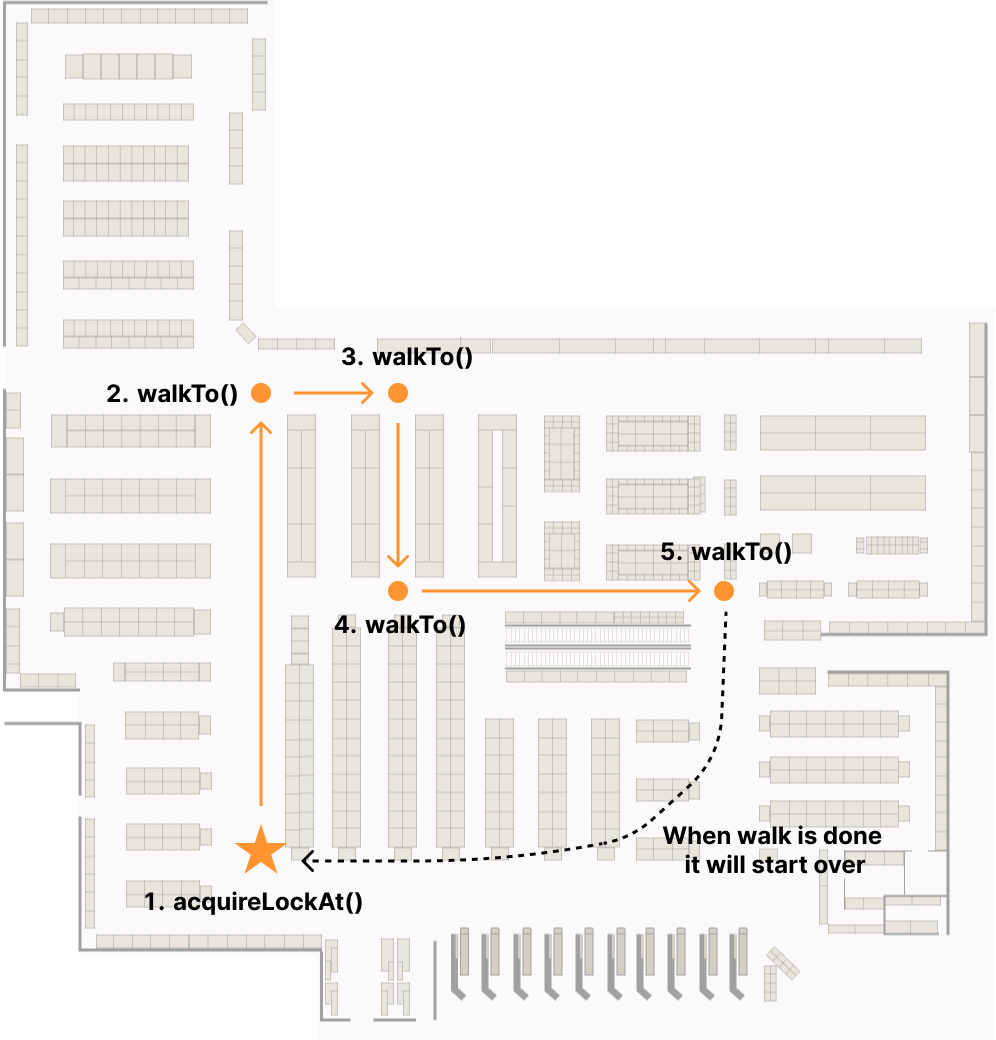
Selecting the coordinates for a walk
To construct a walk you need coordinates in the Oriient Coordinate System. There are two convenient ways to get them:
-
Using the Oriient Dashboard (contact Oriient Customer Support for access) — the coordinates under the mouse pointer are shown in the bottom-left corner of the map view.
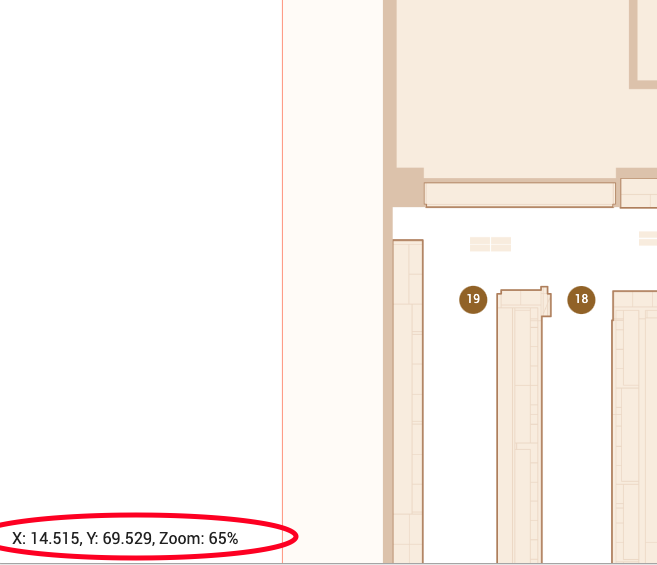
-
Using the Sample application (contact Oriient Customer Support for access) — long-press (double-tap on Android) the map for a
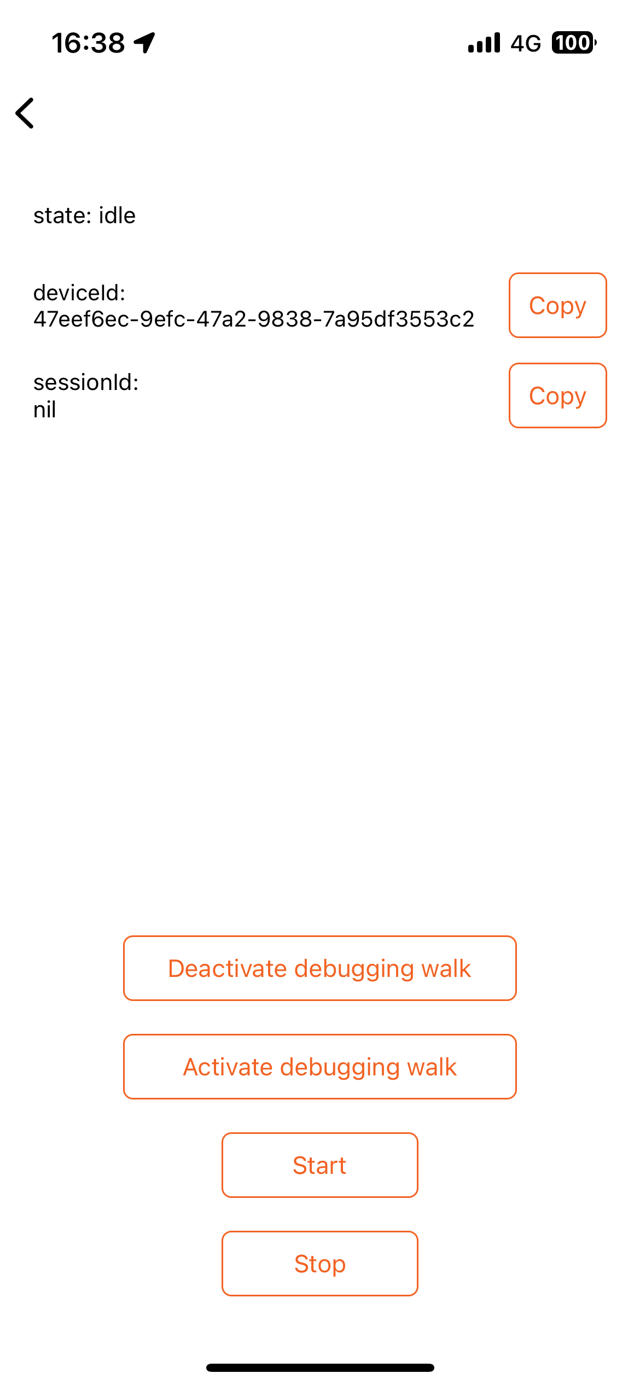
Copy coordinatesoption, which copies the coordinates to the clipboard and prints them to the console. Run the Sample application in a Simulator, select the relevant building, and use this to find the coordinates for a walk.The latest Sample application also has a Development panel with useful debugging features, including manual start/stop of positioning, copying the device and session id, and activating a debug walk.
Dealing with the buildings' geofences
By default, Oriient SDK does not allow to start positioning sessions and also does not start automatic calibration when the device is far away from any of the activated buildings. Oriient SDK uses the standard GPS location provider to identify if a user is nearby one of the activated buildings, so during the integration period you can overcome this limitation by simulating the GPS location of a device to be inside an activated building:
- For iOS the most convenient way to simulate the GPS location is by using Xcode, there are multiple articles on how to do it and you can simulate not only a static location but also movement;
- For Android the most convenient way is to use one of the many ‘fake GPS’ applications; Many of them are free, in Oriient we use this application that allows simulating a static location or movement between a set of waypoints. The free version contains annoying ads, but most importantly - it works 🙂
Testing the calibration
The calibration process (unlike positioning) is indifferent to the device’s location. If you dealt with the geofencing issues or started the calibration manually you can finish it by rotating the device the same way being on-site or at home. Just make sure you are not too close to your laptop, better to stay in the middle of the room.
Testing the proximity service
It is considered that the Proximity service was already setup correctly: regions and triggers are configured using the Dashboard and you subscribed to the events using IPSProximity.addProximityEventsObserver()
The IPSProximity service will only trigger an event if the user position is ‘locked’ and its coordinates are inside one of the predefined regions.
You can use IPSDebugging.positioningDebuggingWalk (see Simulating a user walking in a building above) to move the simulated user's location so it falls inside one of your proximity regions, without being near an actual building:
- Construct a debugging walk whose coordinates pass through (or dwell in) a region that has a proximity trigger attached — for example using
acquireLockAt()orwalkTo()targeting coordinates inside the region. - Set
IPSDebugging.positioningDebuggingWalkbefore starting a positioning session. - Start positioning as usual. You should receive the enter/dwell events attached to that region right away; if the walk later moves the position out of the region, you will also receive the exit event.
Testing the event tagging (barcode scanning)
As long as there is an active positioning session you can start testing the even tagging by calling the IPSPositioning.sendEventTag() call. You will get a success callback telling you that we managed to register the event, but the location information that will be attached to the tag will probably have near-zero lockProgress and will not affect the PLAI results.