Positioning
Required
Needed by every integration.
Overview
The primary function of the Oriient Indoor Positioning System (IPS) is to deliver position updates to the end-user. By analyzing sensor readings from the device, IPS calculates the device's position within a building. However, accurate position identification necessitates movement around the map (walk-to-lock).
At the beginning of a positioning session, the system starts determining the device location on the current active map. Initially, with minimal data collected, the system might furnish a position with low accuracy, meaning a high degree of uncertainty. As the device traverses the area, the system gathers more information, fine-tuning the position and enhancing accuracy over time.
The progress (from 0 to 1) towards a Position Lock is provided with each position update in the IPSPosition.lockProgress property.
Position Lock is a state in which the system knows, in high probability, the device location.
Positioning Service Availability
The positioning will not start under any of the following circumstances:
- Login was not performed;
- There is no Internet connection and the building's positioning data hasn't been downloaded yet (see Pre-loading the data required for positioning);
- There is no access to the Location Services with full accuracy.
Starting Positioning Session
Start a positioning session using IPSPositioning.startPositioning().
func initiatePositioningSession() {
    // start positioning
    IPSPositioning.startPositioning(
        buildingId: "",
        from: nil, // known starting position
        fullAccuracyPurposeKey: nil // in case there is no access to precise location the SDK can automatically request it using the provided description
    ) { (error) in
        if let error = error {
            print("Failed to start the positioning session. Reason: \(error.message)")
            return
        }

        // Positioning session started
    }
}
Recommendation
It is recommended to use geofence information from buildings' metadata not to start positioning when the device is clearly outside of the building. Use IPSBuilding.geofencingState to check the current geofencing state of a building before allowing to start the positioning. Use IPSGeofencing to actively monitor if the user is nearby one of the available buildings.
Providing Starting Position
If your application holds information about the device location the moment a positioning session starts (from another positioning service or some app-specific logic), you can provide that information while starting a positioning session. Doing so helps the system more quickly acquire device position.
Start positioning session using IPSPositioning.startPositioning(from:) describing the device location, heading, and the location accuracy.
Warning
Providing incorrect information about the initial device position may significantly increase the time it will take the system to acquire an accurate position.
While the system is not in a positioning state, you can use IPSPositioning.setLastKnownPosition() to update the system's Last Known Position.
Monitoring Positioning Session Events
Use IPSPositioning.addPositioningObserver() to add an observer implementing IPSPositioningObserver protocol to manage the device's:
- Position updates,
- Current active floor changes,
- Calibration requests,
- Calibration progress,
- Positioning and Calibration sessions state changes, and
- Service errors.
Manage Device's Position Updates
The func onPositionUpdate(_ newPosition: IPSPosition) method will be called with a position update.
Each position update contains:
- Device's location – (x, y, z) vector in meters;
- Device's heading – (x, y) coordinate on a unit circle that denotes heading;
- Accuracy measure – scalar in meters;
- Lock progress - value from 0 to 1;
- Main Orientation - (x, y) coordinate on a unit circle that denotes the main orientation of the movement with respect to the map.
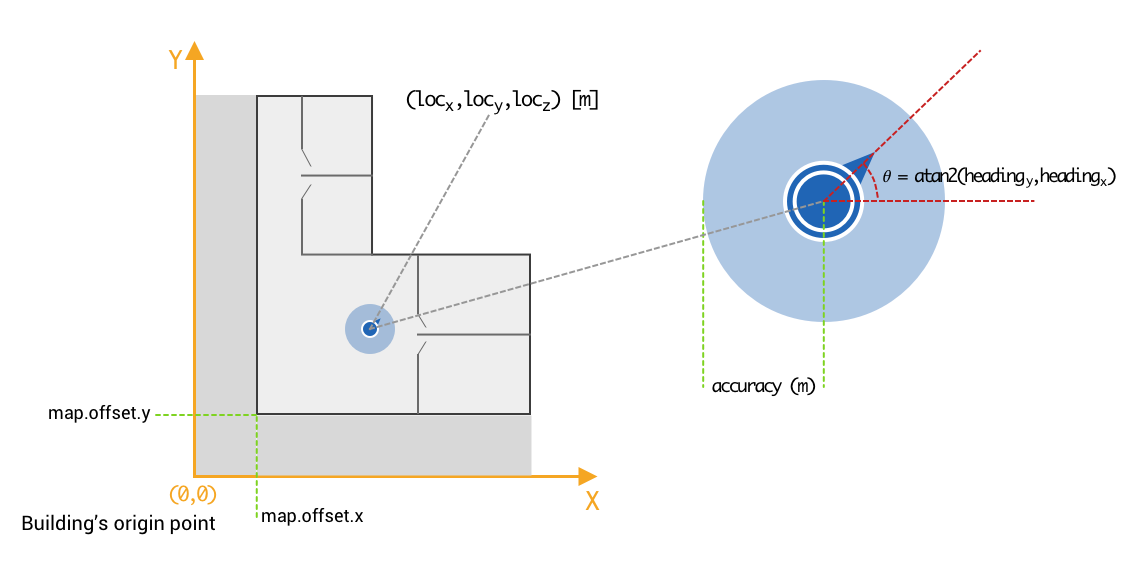
Info
All the coordinates in the system are relative to a building. The overview of the Coordinate System used in Oriient IPS can be found here.
//IPSPositioningObserver implementation
func onPositionUpdate(_ newPosition: IPSPosition) {
    let locationX = newPosition.x
    let locationY = newPosition.y
    let accuracy = newPosition.accuracy
    let lockProgress = newPosition.lockProgress
    let headingAngle = newPosition.heading.angle // atan2(newPosition.heading.y, newPosition.heading.x)
    let mainOrientation = newPosition.mainOrientation.angle
}
Tip
Please mind the difference between headingAngle to mainOrientation. headingAngle is used to indicate the angle of the device itself, while mainOrientation represents the walking direction of the user. In terms of UI development, the headingAngle is used to show a directional cone attached to the user dot, while mainOrientation is used for map rotation based on the user walking direction.
Manage Floor Change
In case the device moves to another floor in the building, the onFloorChanged(IPSFloor floor) method will be called with the new floor object. The positioning session will continue on the new floor. The floor change will also affect the navigation and proximity services and possibly should be presented in the UI.
Manage Calibration Gesture Needed Request
In case the system determines it is necessary to calibrate the device's onboard hardware while positioning, the func onCalibrationGestureNeeded() method will be called with needed == true. It is strictly recommended that you do not ignore the calibration requests. For information on how to perform a calibration session, see Calibration.
Stopping Positioning Session
To stop a positioning session, use IPSPositioning.stopPositioning().
IPSPositioning.stopPositioning { (error) in
    if let error = error {
        print("Failed to stop positioning \(error)")
        return
    }

    // The session has stopped
}
Tagging important events
It is possible to tag important events during a positioning session (for example - barcode scans) using IPSPositioning.sendEventTag(). Each event tag will be assigned with the most relevant information about the device position for our PLAI service. Use .productScan for scanned products, or .itemNotFound for items that couldn't be found.
See Product Location (PLAI) for the full flow, including product metadata and high-confidence scans. You may also refer to our full event-tagging guide here.