Restricted Areas
Optional
Needed if your buildings have Restricted Areas configured in the Dashboard.
Overview
Available since SDK 8.2.0.
In some cases there are areas in a building that a user can visit, but where Oriient should not keep tracking their precise location — common examples are restrooms, pharmacies, and other private areas. To protect user privacy, these areas can be marked as Restricted Areas using the Web Dashboard.
When a user enters a Restricted Area, their reported position freezes at the point where they entered it — both for your app and for Oriient's own analytics, where visits to restricted areas are marked separately so they can be filtered out.
Observing Restricted Area Changes
Use IPSPositioning.addCurrentRestrictedAreaListener() to add a listener implementing the IPSCurrentRestrictedAreaListener interface:
// IPSCurrentRestrictedAreaListener implementation
override fun onCurrentRestrictedAreaChange(restrictedArea: IPSRestrictedArea?) {
    if (restrictedArea != null) {
        // The user entered a restricted area — the reported position is now frozen
    } else {
        // The user left the restricted area — position updates resume normally
    }
}
The current restricted area, if any, can also be read directly via IPSPositioning.getCurrentRestrictedArea().
Recommended UX
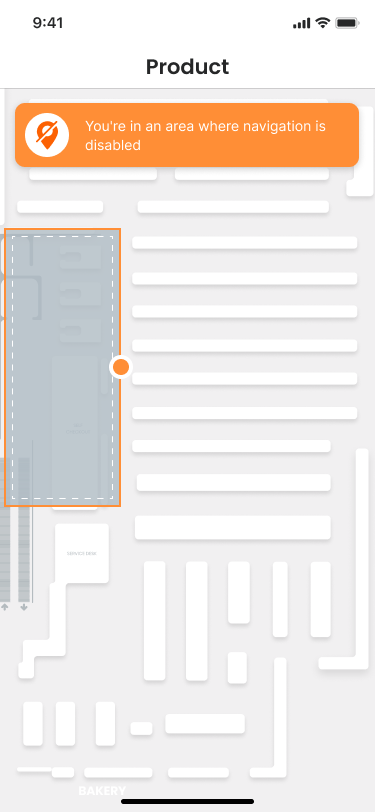
If a frozen position isn't explained to the user, it will likely be perceived as a bug. It's recommended to:
- Show a banner explaining that navigation/positioning is temporarily disabled in this area;
- Mark the restricted area on the map;
- Hide the accuracy and heading indicators on the user's position while frozen, since they no longer reflect the device's real movement.